
Novelcrafter Alternatives
This post was written by the TypeTak team. Our own product is part of the comparison, so please read with that in mind. Prices and features reflect each service's official pages as of October 2026 and may change.
What is Novelcrafter?
Novelcrafter is a writing tool for novelists who build their book from the structure up. You plan the book in acts, chapters, and scenes, keep your characters and world in the Codex, and write scenes with AI on top of that.
Its defining trait is that it doesn't provide AI itself. You connect an API key from a service like OpenRouter, or run a model on your own computer with LM Studio. That keeps the subscription low, and you pay the service you connect for AI usage separately.
Why writers use Novelcrafter
Writers use it to handle structure and lore closely while running AI their own way. When a new model comes out, they switch to it right away, and they edit the prompts sent to the AI themselves. The Codex finds mentions in the manuscript on its own and shows who appears in which scene.
On the other hand, getting a key and connecting it before the AI works takes some setup, and paying for the subscription and the AI separately can feel like a burden.
Below, we compare five features side by side with TypeTak, Sudowrite, and Squibler: planning, lore management, drafting, AI models and prompts, and revision.
1. Planning
| Feature | Novelcrafter | TypeTak | Sudowrite | Squibler |
|---|---|---|---|---|
| Structure the book in acts, chapters, and scenes | Plan | A board in the World | Outline · chapter beats | Folders · files |
| Switch the same structure between views | Grid · Matrix · Outline | Board · table | ||
| Show the characters and places in each scene | Found automatically | Entry chips on cards | ||
| AI drafts the structure | Agent | Synopsis → outline | Organize | |
| Plan in conversation | Workshop Chat | World backlog → board | AI chat |
This is where you build the skeleton of the story before you write. All four tools break a story into acts, chapters, and scenes. When choosing, look at how many ways you can view that structure, and how far the AI helps you build it.
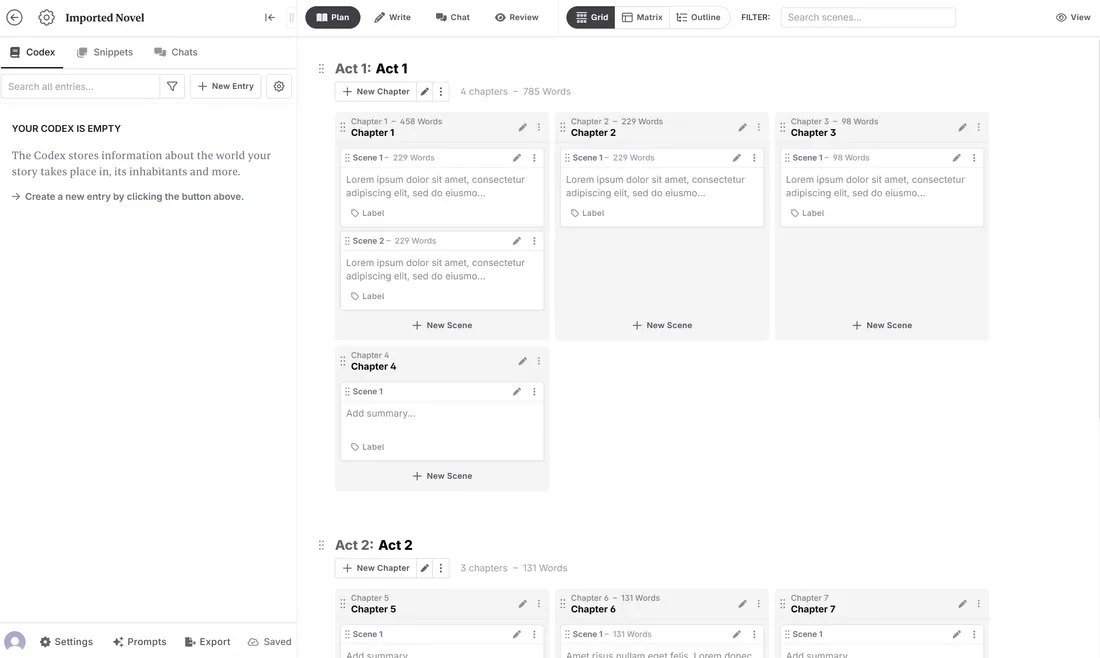
Viewing your structure — Novelcrafter's Plan has the deepest planning screen. You can view the same structure as a card board (Grid), a table with scenes against characters and subplots (Matrix), or an outline of scene summaries alone (Outline). When a name registered in the Codex comes up in a scene, it's found and marked automatically, so the Matrix shows at a glance who appears where.
In TypeTak, you make a board in your World (say, "Story"), lay the structure out as cards, and switch the same board to a table to skim the plot one scene per row. Each card can carry the characters and places in it.
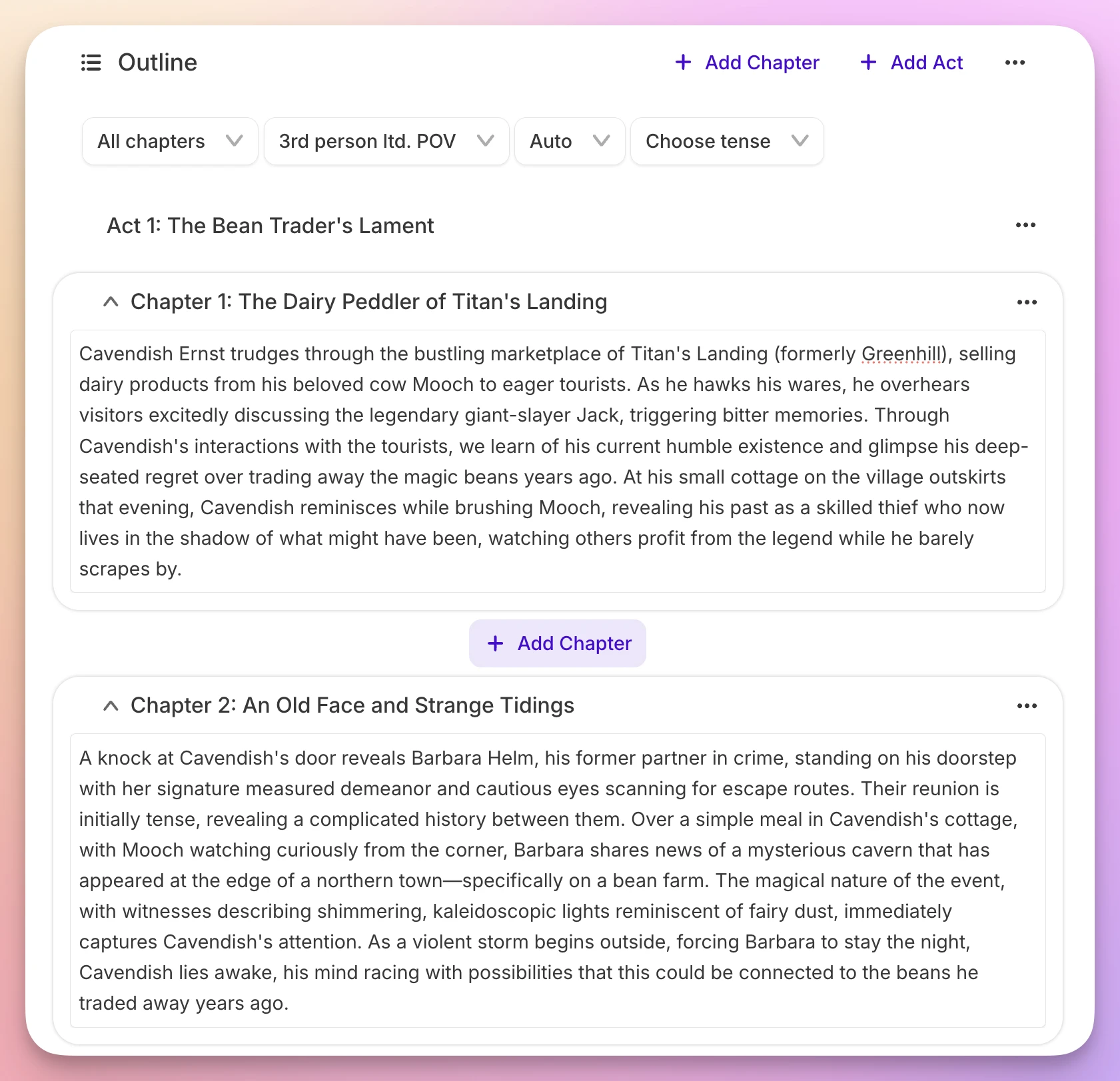
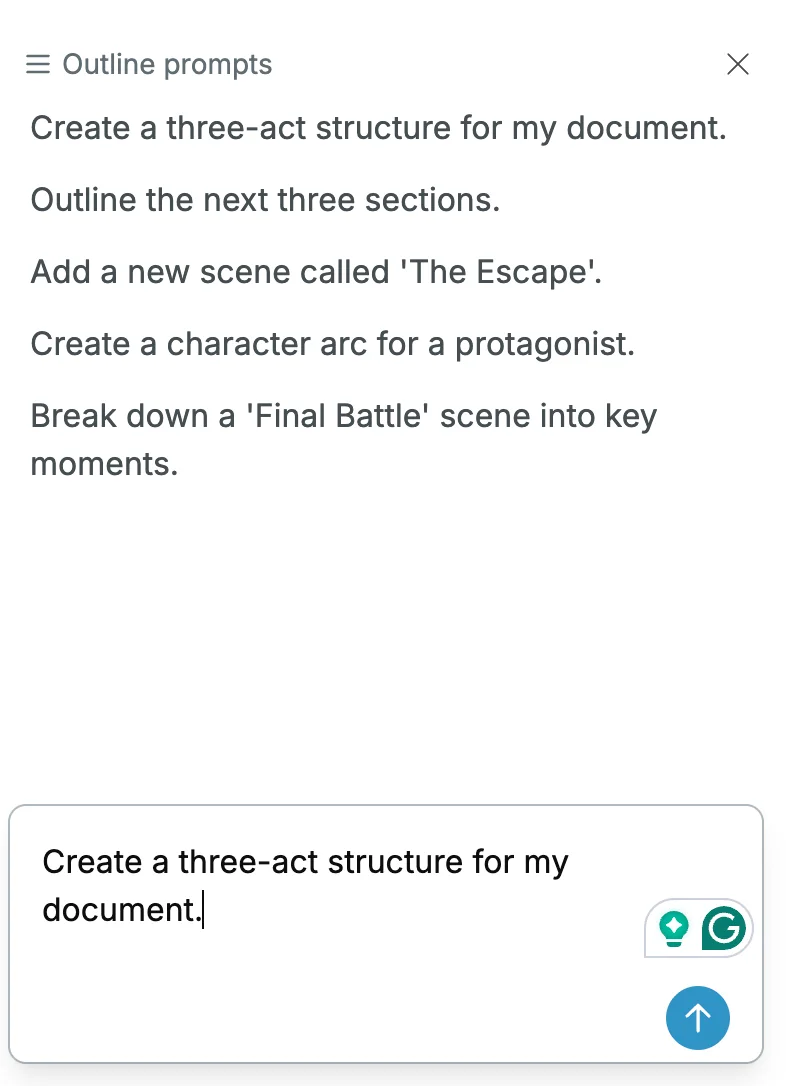
Planning with AI — If building the structure from scratch feels daunting, the AI can help. Novelcrafter lets you talk the structure through in Workshop Chat, but moving it into the Plan is up to you. In TypeTak, you build it in conversation with the agent. Plot points you settle collect in the World backlog below the chat box, and clicking Organize files them onto the board as cards.
Sudowrite walks you through the Story Bible's steps, generating an outline from your idea and synopsis, then chapter beats from the outline, each with a button. The set steps make it easy to follow. Squibler has the AI build your book's folders, files, Elements, and even a cover from an idea; after that, you click Organize to pick an outlining task or ask in chat.
2. Lore management
| Feature | Novelcrafter | TypeTak | Sudowrite | Squibler |
|---|---|---|---|---|
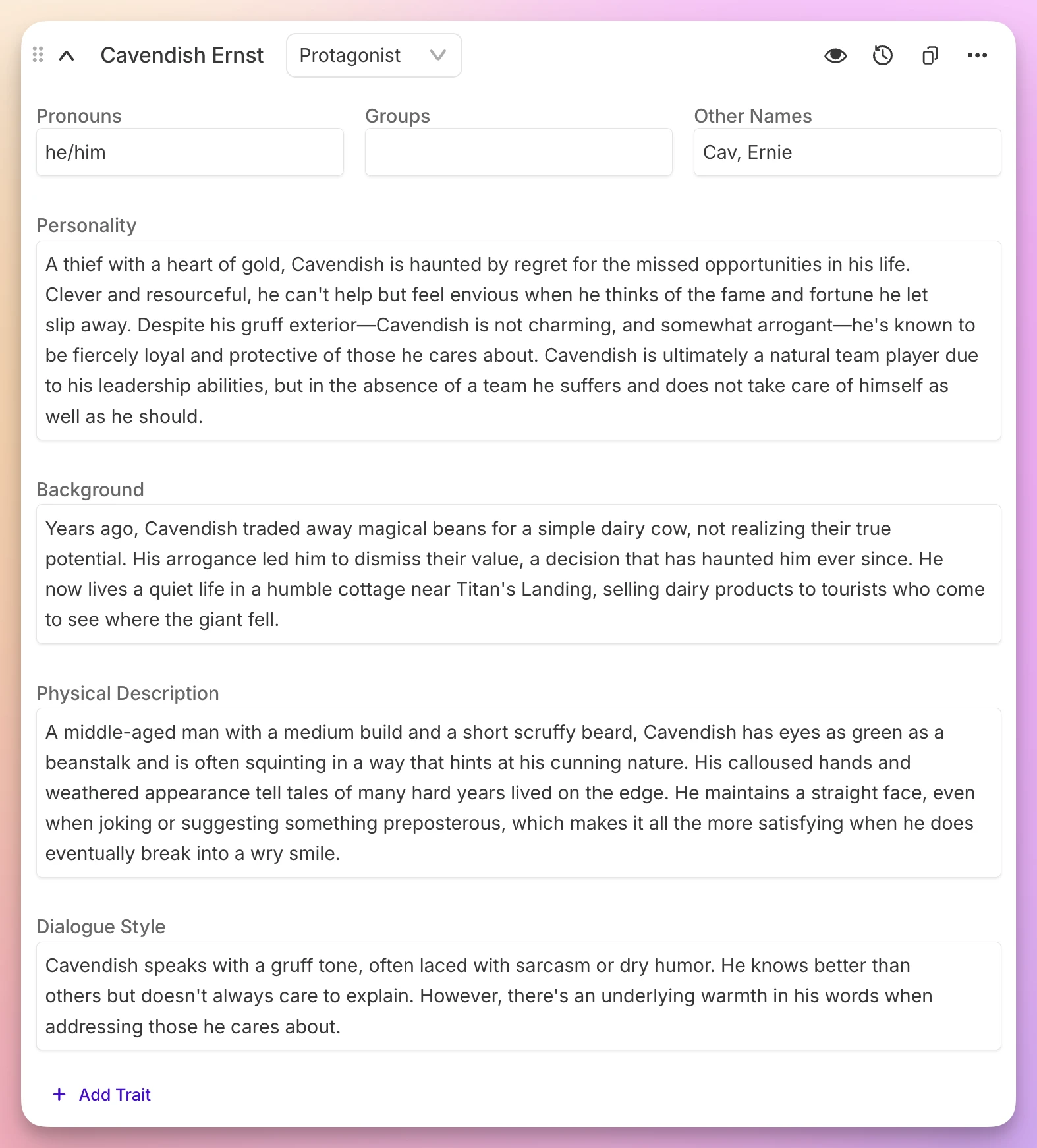
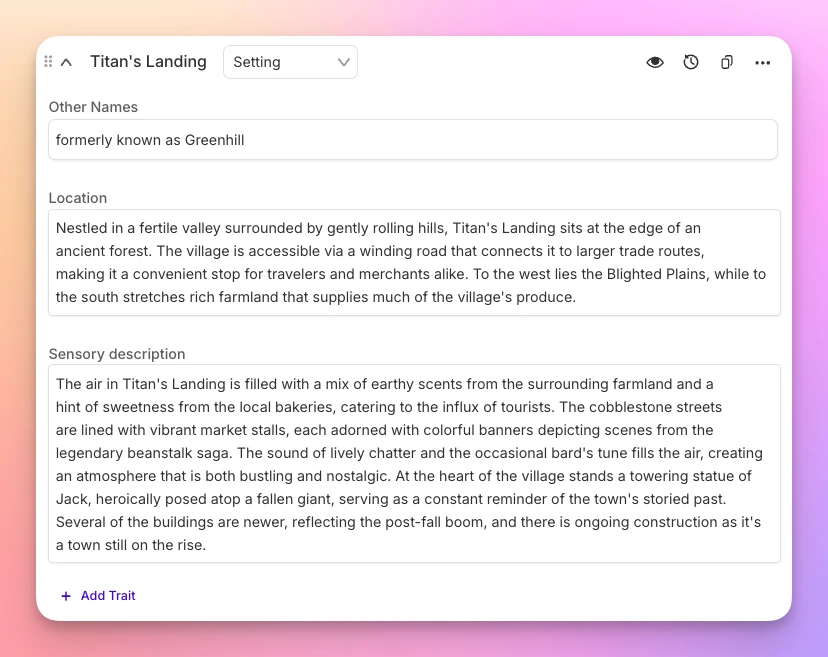
| Organize characters, places, and lore as entries you can edit | Codex | World | Story Bible | Elements |
| Set fields per type | Attribute boxes | |||
| AI fills in entries | When generating a book | |||
| Pulls lore from an imported manuscript | Character extraction | |||
| Collects lore decided in conversation | ||||
| AI draws on lore while writing | When mentioned | |||
| Links and backlinks between entries | Relations | |||
| Track where entries appear in the manuscript | Mentions · heatmap | |||
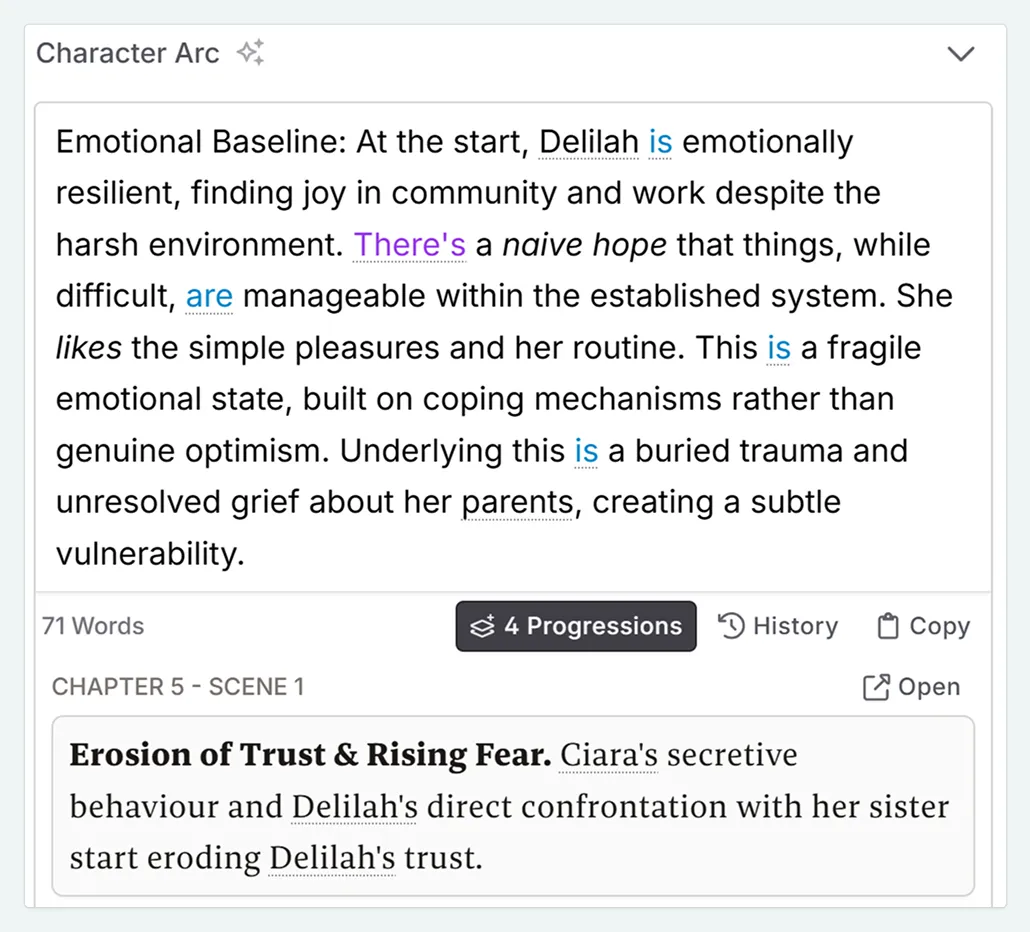
| Track lore that changes over time | Progressions | Spans | ||
| Relationship map (graph) | Relations list | |||
| Share lore across manuscripts (a series) | ||||
| Publish your lore by link |
All four tools let you write down your characters and lore and have the AI draw on them while writing. When choosing, look at how closely your lore ties into the manuscript, and how you build it up.
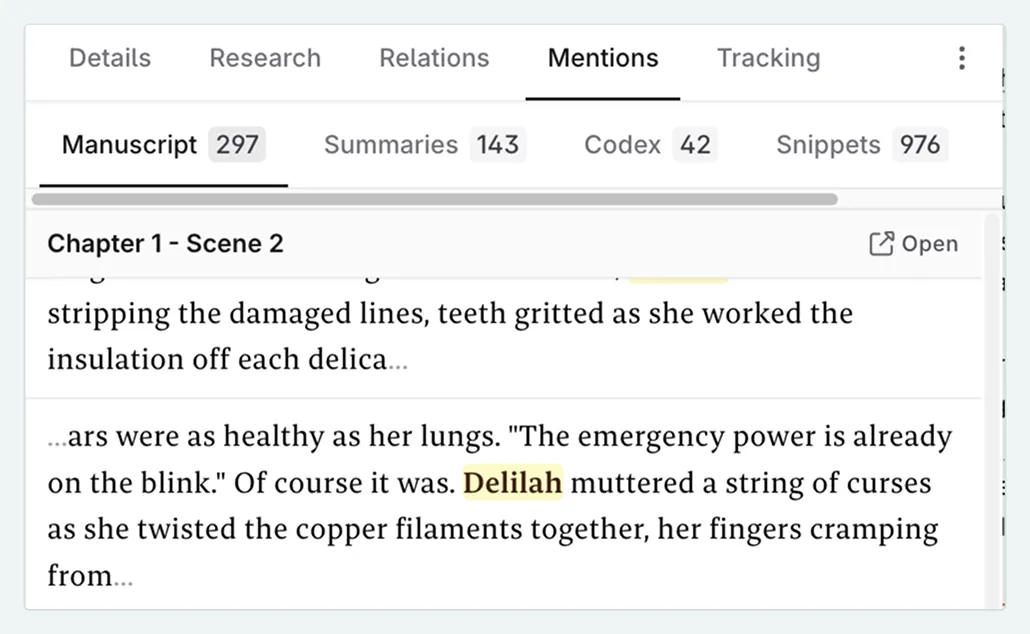
Tracking appearances — see who shows up in which scene. Register names and aliases in Novelcrafter's Codex, and it finds mentions across your manuscript, scene summaries, and chats, with a heatmap of who appears in which scene. No other tool of the four has this. The same mentions decide what lore goes to the AI: for each entry, you choose whether it's always sent or only when mentioned.
Lore over time — keep what changes mid-story. Lore that changes along the way, like a title or who rules a city, is kept by period with Novelcrafter's Progressions. TypeTak also keeps it in spans instead of overwriting, so lore that changed mid-serial doesn't get mixed up with earlier chapters.
Writing your lore — TypeTak's World gives each entry a body you write in an editor that shows formatting as you type, and links to other characters and events take you there in one click. Every entry also has a property table that holds not just text but other entries and options as values.
Relationship graph — see who's tied to whom at a glance. Novelcrafter connects entries as a list in the Relations tab. In TypeTak, a relationship you record in a character's field becomes a line in the graph, so the whole web is visible without drawing a chart yourself. A relationship recorded on one side shows up on the other too.
Table — compare entries of one type side by side. Lay all your characters out in one table and line up age, occupation, and affiliation field by field. Change a type's fields and existing entries change with it, so inconsistencies stand out.
Worldbuilding in conversation — your lore builds up as you talk with the agent. Talking with the agent, you settle new characters, places, and rules. TypeTak collects them in the World backlog below the chat box; click Organize and they're filed into your World.
Publishing your World — share your world's encyclopedia with others. Pick the manuscripts and World to publish, and anyone can read them from one link, no login needed. Visitors browse your lore as cards and a graph, read the manuscript like a book, and leave comments. Lore you're not ready to reveal stays hidden.
Lore the AI fills in — If you'd rather hand your lore to the AI from the start, Sudowrite makes it easy. With a few lines of an idea and a synopsis, the AI creates and fills character and worldbuilding cards, and those cards carry straight into the outline and draft. Lore you don't want the AI to see yet, like the ending, can be hidden by card or by field.
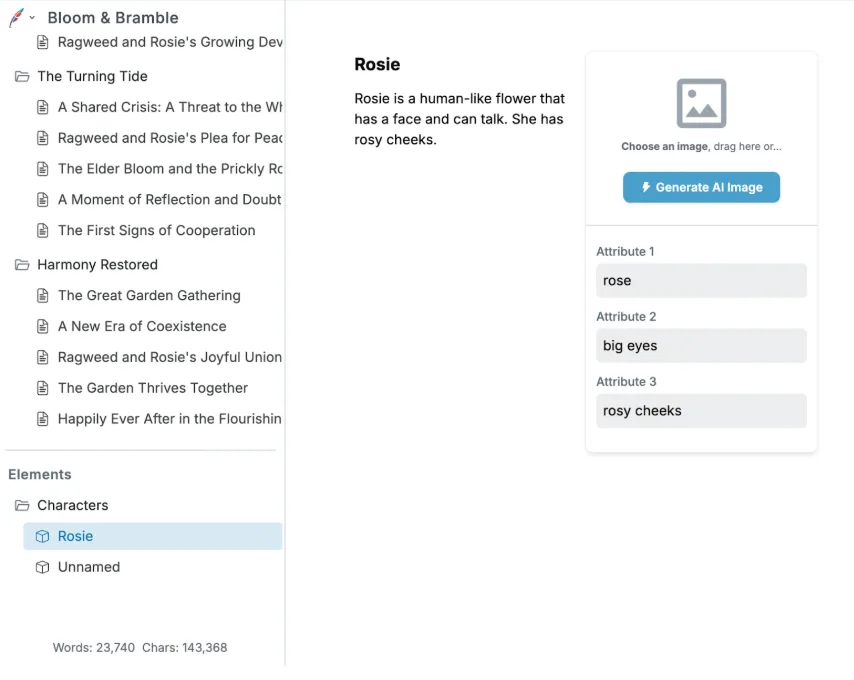
Squibler's Elements organize characters, settings, and objects with a name, a description, and attribute boxes, grouped into folders. You can generate an image for each one.
3. Drafting
| Feature | Novelcrafter | TypeTak | Sudowrite | Squibler |
|---|---|---|---|---|
| Draft a whole scene or chapter | Scene beats | Drafting | Draft | Whole book at once |
| Draw on your organized lore while drafting | Codex | World | Story Bible | Elements |
| Generate a whole book in one go | Book generation | |||
| Review and adjust a plan before drafting | Draft plan | Scene check before generating | ||
| Set a draft length and stick to it | Pick a length per beat | |||
| Set a prose style | Written into prompts | Writing Style | Style in the Story Bible | Instructions in AI Chat Settings |
Novelcrafter, TypeTak, and Sudowrite draft a scene or chapter at a time, while Squibler generates a whole book at once. All four draw on the lore you've organized.
How drafting works — In Novelcrafter, you write what should happen in a scene as a beat and generate the scene's prose from it. If it misses, you revise the beat and generate again. TypeTak's agent gives you a Draft plan first; you adjust the outline and length, and it writes to that plan. Ask it to just write, and it goes straight ahead.
Sudowrite drafts a chapter scene by scene with Draft, checking before it generates whether any scene is too thin or tries to cover too much. Squibler generates the book from the details you enter, building folders, files, Elements, and a cover along the way, and you read and revise in the editor once it's done.
Length — If you need each chapter to hit a set length, as in web serials, TypeTak makes it easy. AI models rarely keep to a requested length, so TypeTak runs a separate step to match the character count set in the Draft plan. Novelcrafter puts the length you pick into the prompt when generating a beat, and on Sudowrite the number of scenes roughly sets the length.
Prose style — On Novelcrafter you note your style preferences in prompts, and on Squibler in the instructions box in AI Chat Settings. In TypeTak's Writing Style and Sudowrite's Style, you set point of view, sentence rhythm, and how you handle dialogue and description, and drafts follow it; both can also read a sample of your writing and sum up your style for you. TypeTak applies the same standard to Revision and Feedback.
4. AI models and prompts
| Feature | Novelcrafter | TypeTak | Sudowrite | Squibler |
|---|---|---|---|---|
| AI usage included in the subscription | ||||
| Choose the model | Connect any model | Gemini or GPT | ||
| Connect your own API key or a local model | ||||
| Edit the prompts sent to the AI | Guidance · Skills | Plugins | Instructions |
Which tool fits depends on how hands-on you want to be with the AI. TypeTak, Sudowrite, and Squibler include AI usage in the subscription, so they work right away with nothing to set up; Novelcrafter has you connect the AI you want.
Choosing a model — Novelcrafter gives you the most freedom. Pick from more than a hundred models through OpenRouter, use community fine-tunes through Featherless, or run a model on your own computer with LM Studio so your writing never goes to an AI company. TypeTak lets you choose whether the agent runs on Gemini or GPT, and on the Max plan you can choose separately for each job, like drafting or revising.
Sudowrite offers its own fiction model, Muse, alongside more than thirty others. Sudowrite describes Muse as a long-form fiction model trained on published novels and stories, built to follow your sentence length, vocabulary, and rhythm. Squibler picks the model for you.
Giving the AI standing instructions — Each tool also has its own way to tell the AI what to always keep in mind. Novelcrafter lets you clone the prompts sent to the AI and edit them. In TypeTak, preferences you note in Guidance go into every conversation, and requests you make often can be saved as Skills and called from the agent chat. Squibler has you note them in the instructions box in AI Chat Settings.
5. Revision
| Feature | Novelcrafter | TypeTak | Sudowrite | Squibler |
|---|---|---|---|---|
| Make your own revision tools | Custom Prompts | Skills | Plugins | |
| Rewrite a selected passage | Rephrase | Rephrase | Rewrite | Rephrase |
| Add description or build out a scene | Expand | Enhance | Describe · Expand | Expand · Show Don't Tell |
| Feedback on the manuscript | Workshop Chat | Feedback | Feedback | Review |
| Comments and alternatives on sentences to fix | Revision | From the Professional plan | ||
| Spelling and grammar | Proofreading |
All four tools rewrite a selected passage and add description or build out a scene. When choosing, look at how freely you can shape your own revision tools, and how each one reviews the manuscript as a whole.
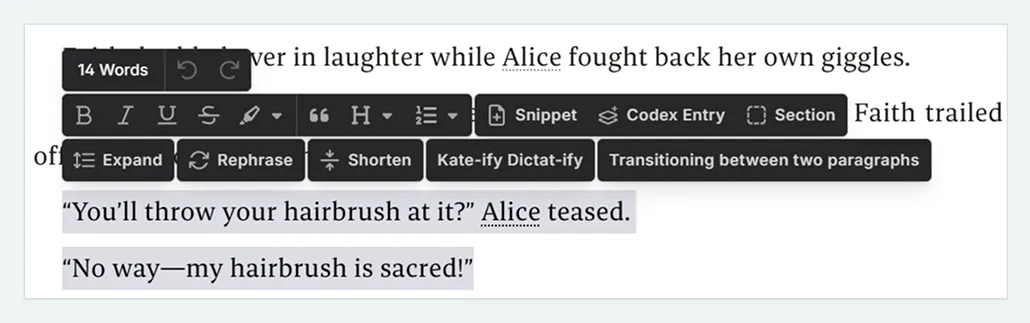
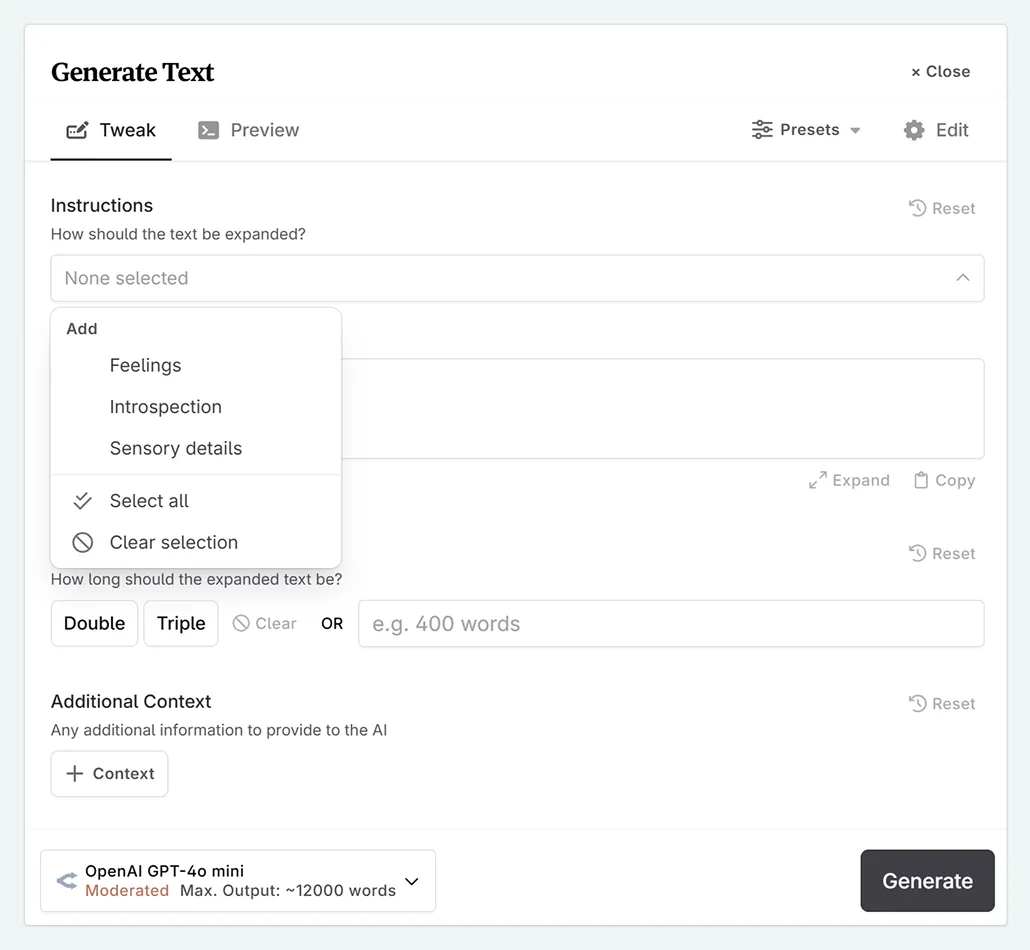
Revision tools — In Novelcrafter, you select a passage and call Expand or Rephrase from the menu that opens; if none fits, you make your own with Custom Prompts and add it to the same menu.
TypeTak's Rephrase shows four options as soon as you place the cursor, and clicking one puts it straight into the manuscript. Enhance lets you pick from nine directions, like turning summary into scene, inner thoughts, or added dialogue.
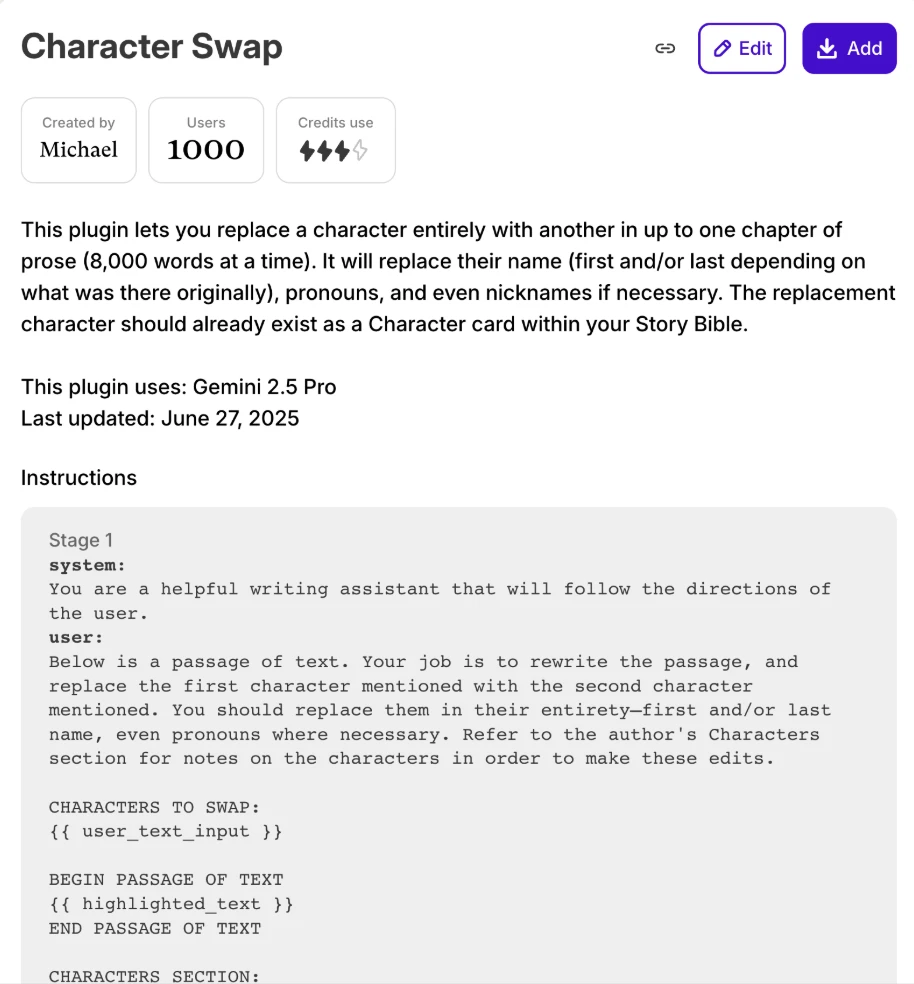
Sudowrite lets you choose from more than 1,000 plugins made by other writers, and since each plugin shows its instructions, you can adapt one into a tool of your own.
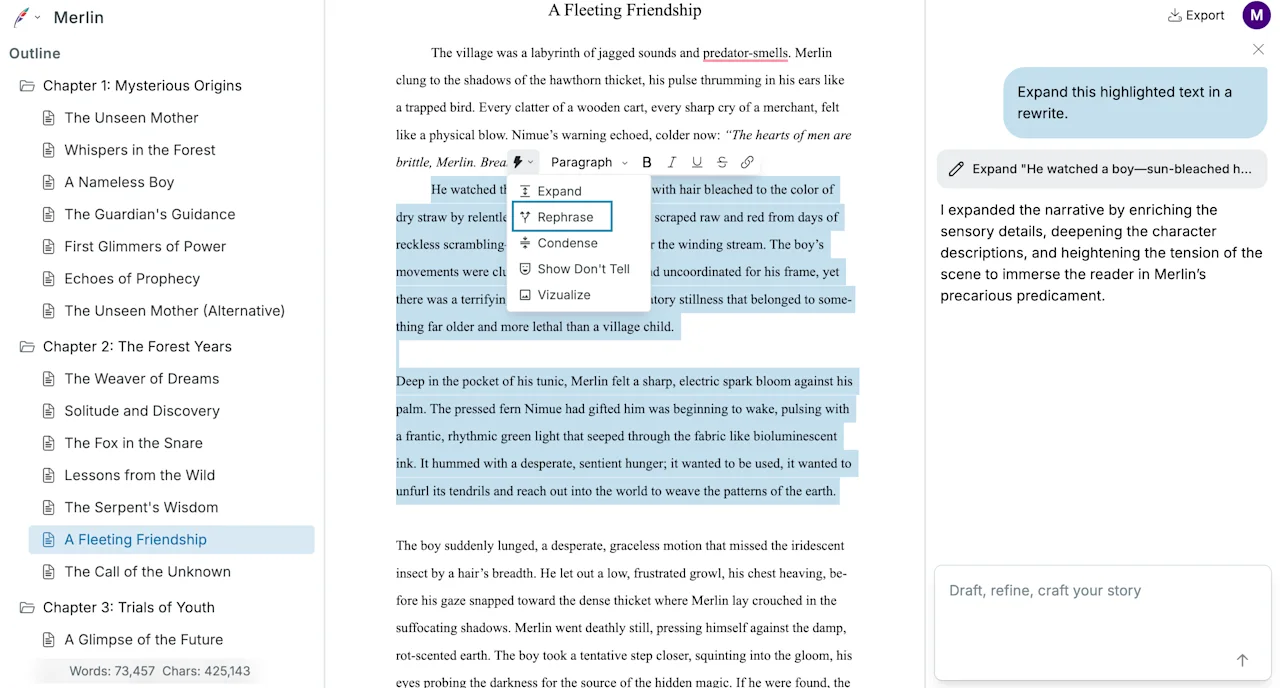
Squibler runs Expand, Rephrase, Condense, or Show Don't Tell on a selection, and the results arrive in the chat on the right, where you apply or discard each one.
Reviewing the manuscript — Each tool looks over the whole manuscript in its own way. Novelcrafter gives you feedback on your writing in Workshop Chat, and Sudowrite's Feedback and Squibler's Review look at structure and content. TypeTak's Feedback scores each criterion with reasons, and Revision adds comments and alternatives right on the page for each sentence to fix, so you can apply them on the spot. Sudowrite also adds comments and alternatives to sentences from the Professional plan up. For spelling and grammar, TypeTak's Proofreading marks issues on the page; of the four, only TypeTak has this built in.
Pricing
| Item | Novelcrafter | TypeTak | Sudowrite | Squibler |
|---|---|---|---|---|
| Monthly price | $4 / $8 / $14 / $20 | $12 / $40 | $10 / $22 / $44 | $29.99 / $89.99 |
| Free trial | 21 days | 7 days | 1,000 credits | |
| Ongoing free plan | ||||
| AI usage | Your own AI key | Usage limit per plan | Credits per plan | Credits per plan (unlimited on Pro) |
AI costs — Novelcrafter's subscription doesn't include AI costs. From the Hobbyist plan up, you connect a key from an AI provider and pay that provider separately, though a free model on OpenRouter or a model running on your own computer through LM Studio lets you use AI at no cost. TypeTak, Sudowrite, and Squibler give each plan a set amount of AI use that goes down as you use it.
Choosing a plan — On TypeTak you can add extra usage for a busy month and scale it back afterward, and there's a free plan that renews each cycle. Novelcrafter's Workshop Chat starts on Artisan and inviting collaborators starts on Specialist, while Squibler's credits go down according to how much is read and written and which model does the work.
Novelcrafter — Scribe $4/month, Hobbyist $8/month, Artisan $14/month, Specialist $20/month (two months free billed yearly). TypeTak — Pro $12/month ($9/month billed yearly), Max $40/month ($29/month billed yearly). Sudowrite — Hobby & Student $10/month, Professional $22/month, Max $44/month (up to 50% off billed yearly). Squibler — Plus $29.99/month, Pro $89.99/month (up to 45% off billed yearly).
Which one fits you?
Novelcrafter fits writers who
- want to manage story beats systematically and track closely who appears in each scene
- want to pick their own model and run it with their own API key or on their own computer
- want control all the way down to the prompts sent to the AI
- want to invite an editor or co-author to work with them
TypeTak fits writers who
- want to use AI right away without setting up a key
- write serials where each chapter has to hit a set length
- want to work by talking through their world and upcoming plot in conversation
- want to build their worldbuilding in a modern editor and publish the graph and encyclopedia for others
Sudowrite fits writers who
- want several options for the next lines whenever they're stuck
- want to try a fiction-trained model instead of ChatGPT, Claude, or Gemini
- want a wide range of brainstorming tools and plugins shared by other writers
Squibler fits writers who
- want a book-length first draft from an idea in one go
FAQ
Can I move my Novelcrafter manuscript to TypeTak?
Save your chapters as .docx, .md, or .txt files and upload them with TypeTak's Import. Each file becomes one chapter, and the agent files the characters, places, and lore from those chapters into your World.
Which Novelcrafter alternatives work without an API key?
TypeTak, Sudowrite, and Squibler all include AI usage in the subscription, so no API key is needed.
Is there an alternative that runs local models like Novelcrafter?
TypeTak, Sudowrite, and Squibler don't support local models. If keeping your manuscript off other companies' servers matters most, Novelcrafter with a local model is the better fit.
Sources
- Novelcrafter: Pricing, Does Novelcrafter provide its own AI?, Using AI for free, Plan views, Codex entry anatomy, Codex details, Scene Beat, Generating prose with AI, Collaboration
- Sudowrite: Pricing, Features, Scenes & Draft, Characters, Worldbuilding, Books & Series, Muse
- Squibler: Pricing, Credits, Free trial, Generating a book, Elements, AI Chat Settings, Review, Outline (Organize), Expand
Share This Post
Change your first sentence with TypeTak today
Start TypeTakView More Content
→Find out how TypeTak is built, how to use it, and what helps you write.