
Scrivener Alternatives
This post was written by the TypeTak team. Our own product is part of the comparison, so please read with that in mind. So we based it on official sources and user reviews we could cite, and tried to keep it fair to every tool. Prices and features reflect each service's official pages as of October 2026 and may change. We compare from a novelist's point of view and leave out academic and screenwriting uses.
What is Scrivener?
Scrivener is a long-form writing app made by Literature & Latte. You write the manuscript as small documents, one per scene or chapter, and when you're done, Compile puts them together in book formatting. Research and character notes sit in the same project.
It's a one-time purchase for Mac and Windows, and projects are saved on your computer. The iPhone and iPad app is bought separately and syncs with the desktop through Dropbox. There's no AI in the core app.
Why writers use Scrivener
It makes a long manuscript easy to handle in pieces. Each scene is its own document, so changing the order is simple, and you plot by laying out scene cards on the corkboard. Many writers have used it for years, so there's no shortage of courses and templates.
"[In the Binder,] you can move a scene with a simple grab-and-drop."
— Vanessa Kier, writer · Writers' Fun Zone (2018)
The most common complaint is the time it takes to learn. With so many features and settings windows several layers deep, review after review says you have to learn the software before you can write. Another steady complaint is that it's hard to keep writing on a phone. Scrivener has no Android app or web version, and the iPhone and iPad app syncs through Dropbox.
"Still kinda clunky once you study the software."
— Scrivener user · Trustpilot
Below, we compare Scrivener side by side with TypeTak, Dabble, and Novelcrafter in five areas: writing and structuring a manuscript; organizing lore and research; revising and exporting; devices, sync, and working together; and writing with AI.
1. Writing and structuring a manuscript
| Feature | Scrivener | TypeTak | Dabble | Novelcrafter |
|---|---|---|---|---|
| Structure the manuscript by chapter or scene | Binder | Manuscript · chapters | Books · chapters · scenes | Acts · chapters · scenes |
| Edit several scenes as one document | Scrivenings | Continuous view | Chapter and book view | Write view |
| Lay out scene cards in order | Corkboard | Board | Plot Grid | Plan Grid |
| Set targets for the whole manuscript and today's writing | Project · Session Targets | Length in the draft plan | Deadlines · days off | Word count stats |
| Clear the screen and focus on the line you're writing | Composition Mode | Typewriter mode · hide toolbar | Focus Mode | Focus Mode |
| Keep another document open beside the manuscript | Split screen | Split view | Character profiles in a side panel | Pinned Codex entries · snippets |
A novel is hard to write in a single file from start to finish. All four tools split the manuscript into chapters and scenes and lay scenes out as cards so you can see their order.
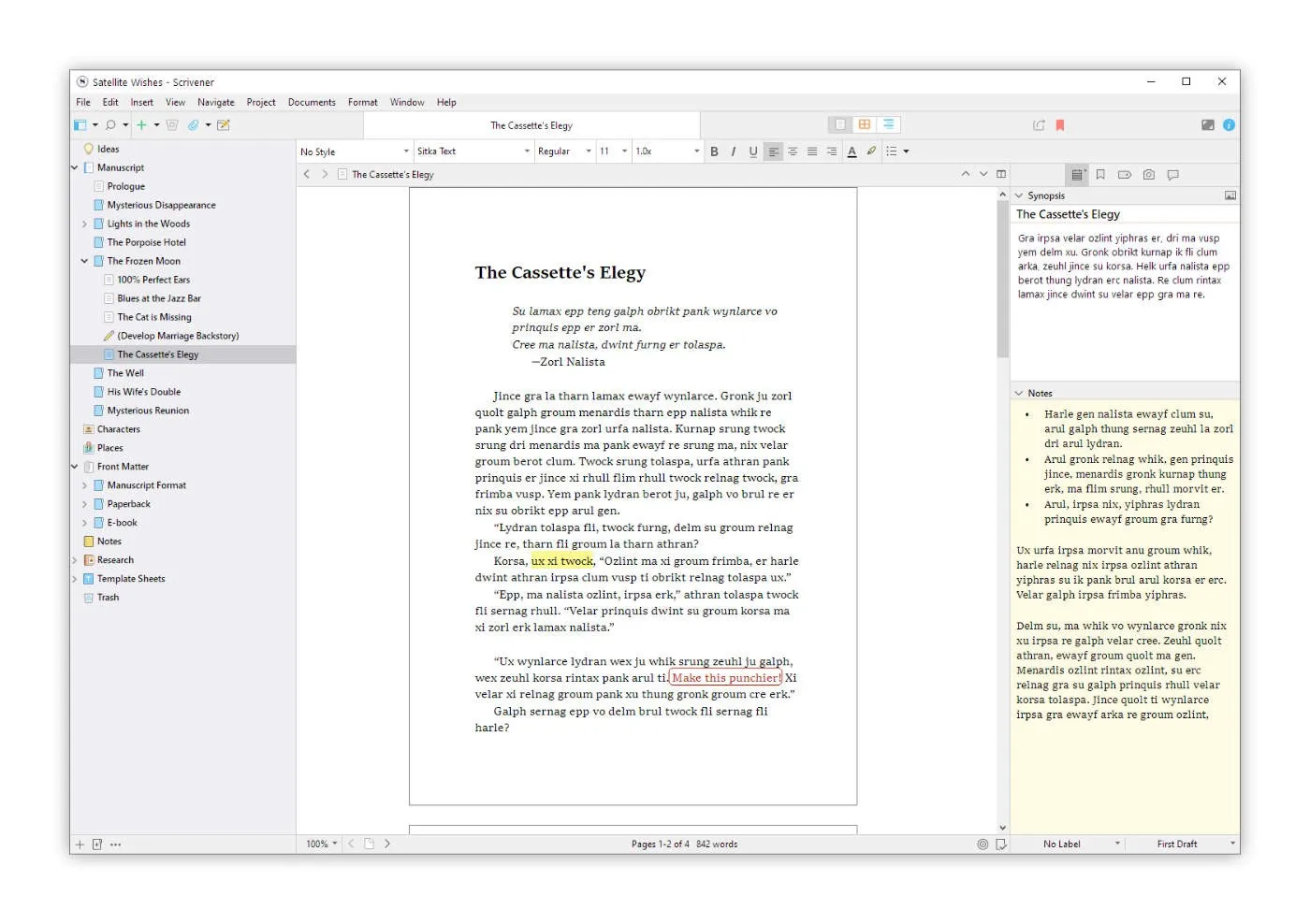
Writing in pieces, reading as a whole — Scrivener has spent the longest refining this approach. You stack scenes as documents in the Binder on the left, and when you select several, Scrivenings joins them into one document. It's easy to zoom in to fix one scene and zoom out to follow the flow.
In TypeTak, you write the manuscript in chapters. Turn on Continuous view and the manuscript's pages join in reading order, so you read and edit them in one scroll. Dabble holds several books in one project, with chapters and scenes stacked under each, so a whole series lives in one place. In Novelcrafter, the acts, chapters, and scenes you plan become the manuscript's skeleton.
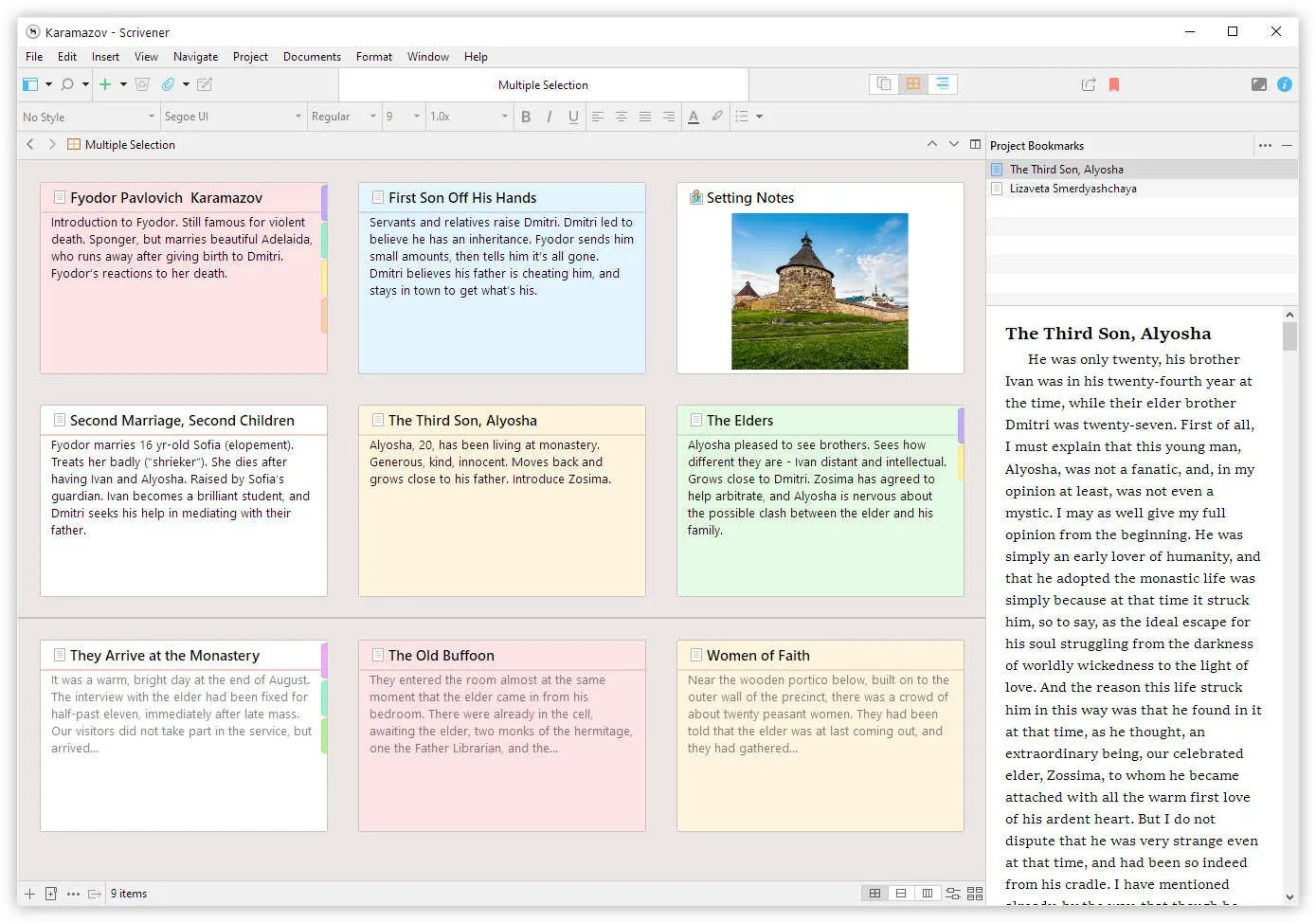
Plotting with cards — Scrivener's corkboard gives each scene an index card with a synopsis, and moving a card reorders the manuscript too. Dabble's Plot Grid puts plot threads in columns and scenes in rows, so one table shows how the main plot and the romance thread carry through each scene.
In TypeTak, you make a board like "Story" in your World to lay out events in groups and order, and build a timeline the same way. Link the characters and places involved to an event card, and you can easily follow which events a character is caught up in. Novelcrafter lays out scene cards with the Plan Grid.
Hitting a target length — If you write to a set amount each day, Scrivener and Dabble suit you. Scrivener sets targets for the whole manuscript and today's session, and keeps a record of how much you wrote each day. Dabble works out a daily goal once you enter a deadline and your days off, and counts your writing streak. TypeTak keeps a running count below the editor, and when you hand a draft to the agent, it writes to the length you set.
2. Organizing lore and research
| Feature | Scrivener | TypeTak | Dabble | Novelcrafter |
|---|---|---|---|---|
| Organize characters, places, and lore as entries | Documents in the Research folder | World | Story Notes | Codex |
| Set fields for each entry | Custom metadata | Property and section slots per type | Attribute list · templates | Details |
| Keep PDFs, images, and web pages as research | Research folder | Document pages (import TXT · DOCX · MD · HTML) | Images in notes | Codex images · snippets |
| Check where characters appear in the manuscript | Organize World · Progression · Matrix | Mention highlighting | ||
| Record lore that changes over time | Progression · property start and end | Written directly in the Plot Grid | Progressions | |
| See character relationships as a graph | Relationship graph | |||
| Collect lore you settle in conversation |
The longer a serial runs, the faster characters and lore scatter. All four tools keep characters and places as separate entries you can pull up beside the manuscript as you write.
A home for research — Scrivener gives you the most room for keeping lore and research next to the manuscript. The Research folder holds character sketches, map images, reference PDFs, even web pages, and you can open them beside the manuscript as you write. You can make template documents like a character sheet and add fields with custom metadata.
In TypeTak, lore builds up as entries in your World. Each node type, such as character, place, or faction, sets what its nodes hold, so every node of a type has the same fields. The AI sets up the first types and fields to fit your story, and when you change one later, the change applies to every node of that type. Notes and research live separately as document pages.
Dabble keeps the manuscript and Story Notes apart, with characters, places, and idea notes outside the manuscript. Novelcrafter's Codex attaches Details fields to entries like characters, locations, and objects, and lets you choose for each field whether the AI sees it.
Where a character appears — In a long serial, you end up hunting for the chapter where a character last showed up. In Novelcrafter, register a name and its aliases in the Codex, and it highlights them wherever they appear in your prose and collects the scenes they appear in under the Mentions tab. In TypeTak, when you organize chapters into your World, the agent reads them and adds what each character went through in that chapter to their Progression, in story order. Each line links to the manuscript page it came from, and clicking it opens that spot. Switch a board to Matrix and dots show which characters appear in each event.
Lore that changes — TypeTak's Progression and Novelcrafter's Progressions record lore that shifts as the story goes on, like a title or an allegiance, over time. Earlier chapters' lore stays as it was, so you can tell what changed partway through a serial.
Who's tied to whom — TypeTak's relationship graph draws the relations written in your World. Fill in a relation like faction, family, or rival on a character entry, and a line joins the two entries.
Organizing with AI — Among the four, only TypeTak has AI collect and organize the lore you settle in conversation. Characters and places you settle while writing collect in the World backlog below the chat box; click Organize to file them into your World. You can also build and edit your World entirely by hand.
3. Revising and exporting a book
| Feature | Scrivener | TypeTak | Dabble | Novelcrafter |
|---|---|---|---|---|
| Go back to an earlier version | Snapshots | History · snapshots | Version history | Revision History |
| Leave comments on the text | Comments · annotations | Comment | Comments · Track Changes | Color-coded sections |
| Check spelling and grammar | System spell check | Proofreading | Spelling · grammar (ProWritingAid) | |
| Compile the manuscript into book formatting | Compile | Page break · page name options | ||
| Export formats | DOCX · PDF · EPUB · RTF and more | PDF · DOCX · TXT · EPUB | DOCX · Google Docs · Markdown | DOCX · Markdown |
Once the first draft is done, all four tools export the manuscript as a file and keep earlier versions around.
Earlier versions — Saving where you are before a big revision lets you dig in without worry. Scrivener saves versions of a scene with Snapshots and compares them with the current text. Dabble's version history lets you preview and restore an earlier version, and you can undo a restore too. Novelcrafter's Revision History saves a scene every few minutes, so you can pick an earlier version and restore it. In TypeTak, History lets you compare against earlier content and restore it, and New snapshot keeps a state you want to hold on to. A version is saved automatically right before an AI draft or revision is applied.
Comments and proofreading — Scrivener, TypeTak, and Dabble all let you leave notes on the parts you want to fix. If you trade drafts with an editor or co-author, Dabble makes that easy: turn on Track Changes, and other people's edits come in as suggestions you accept or reject one at a time. Dabble checks spelling for everyone and adds grammar and style checks through ProWritingAid. TypeTak's Proofreading has the AI read the whole page and mark spelling, grammar, and awkward phrasing right on the text, and you apply the ones you like.
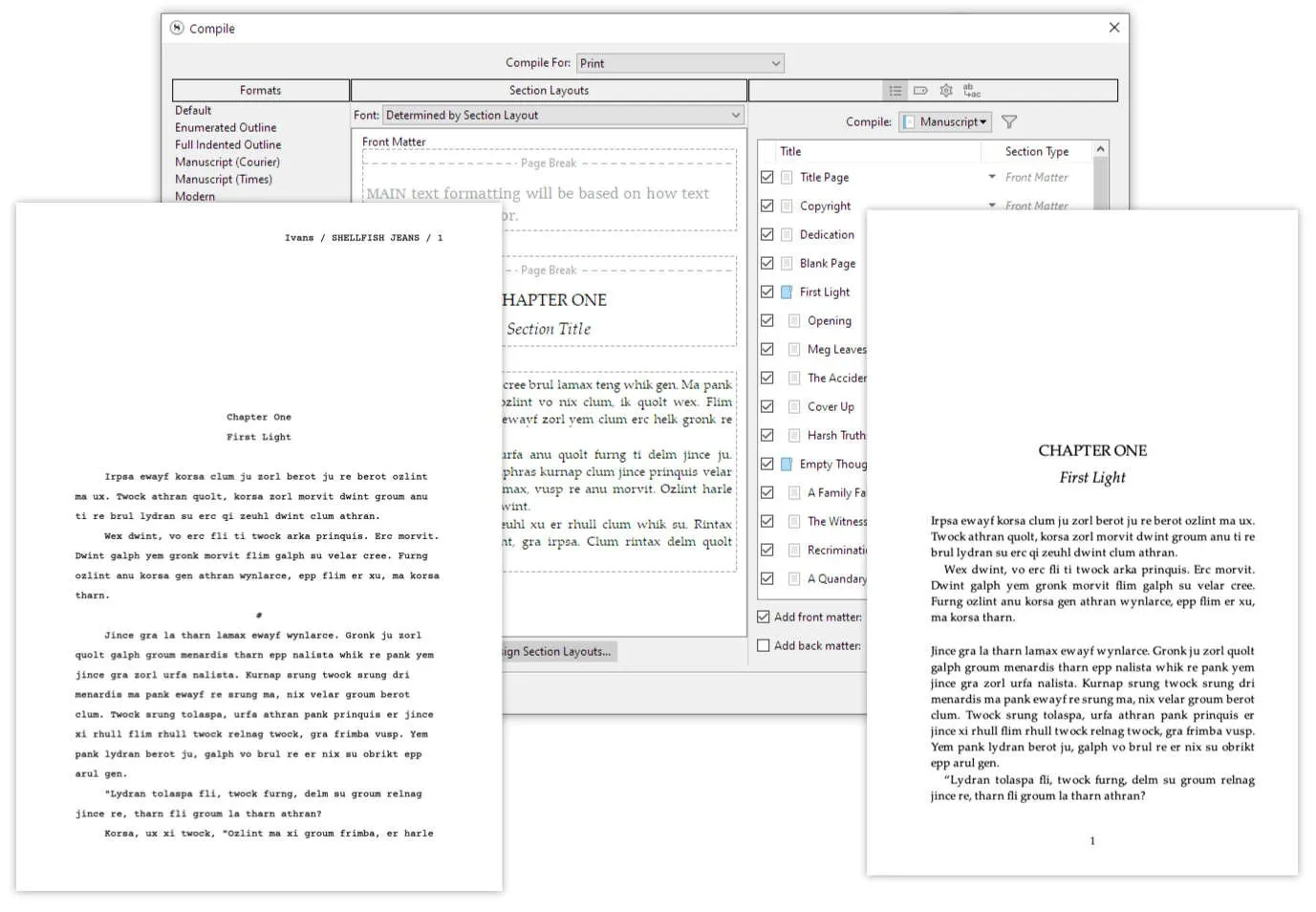
Exporting a book — Scrivener's Compile goes deepest in formatting a manuscript for publication. It turns the same manuscript into a Word file, a PDF, or an EPUB ebook with the formatting you choose, down to chapter titles and scene separators set separately for each format. With that many settings, some reviews also call Compile hard to learn.
"You cannot predict what will happen when you compile."
— J. Gestiot, writer · Substack
TypeTak exports selected chapters as a single PDF, DOCX, TXT, or EPUB file, and can start each page on a new sheet or use page names as chapter titles. Dabble exports a book, chapter, or scene to a Word file or Google Docs, and Novelcrafter exports to DOCX and Markdown. Writers using those two often finish publication formatting in another tool.
4. Devices, sync, and working together
| Feature | Scrivener | TypeTak | Dabble | Novelcrafter |
|---|---|---|---|---|
| Where you can write | Mac · Windows · iPhone · iPad (sold separately) | Web browser (computer · phone) | Web · Mac and Windows apps · phone | Web browser |
| Where your writing is stored | Your computer (Scrivener project) | Cloud | On the device first, then the cloud | Cloud |
| Write offline | ||||
| Sync between devices | Dropbox | Built in | Built in | Built in |
| Invite others to work with you | Co-authors · editors · reviewers | Specialist plan | ||
| Publish or share your manuscript with readers | Public sharing · links | Read-only links · beta readers |
Plenty of writers type a few lines on their phone during the commute and pick up on a laptop at home. Where your manuscript lives decides how smooth that is.
Keeping it on your computer — Scrivener keeps projects on your computer and works offline. It backs up a project automatically each time you open or close it. Keeping everything on your own computer suits writers who'd rather not keep their writing on someone else's server. A copy you've bought keeps opening whatever happens to the company's servers.
Picking up on another device — Scrivener syncs with its iPhone and iPad app through Dropbox, and moves projects between Mac and Windows through folder sync services like Dropbox. The official guide recommends never opening the same project on two devices at once and waiting until syncing finishes before you open it. Forum posts often describe projects that got tangled when someone skipped that order.
"[Dropbox] can just about cope with a single project file being sync'd but no more."
— Scrivener user · Literature & Latte Forum (2026)
TypeTak and Novelcrafter are cloud tools you use in the browser, so the same manuscript opens on any device you sign in from. That includes Android phones and school or work computers where installing software is difficult. Dabble, on the web and in its desktop apps, saves your writing on the device first and syncs it with the cloud once you're connected. You can keep writing when the internet drops, and switching devices needs no manual syncing.
Working together and publishing — For a manuscript shared with a co-author or editor, Dabble is the best equipped. You invite collaborators as co-authors, editors, or reviewers with different permissions, and beta readers comment for free on a copy sent to them. Novelcrafter's Specialist plan lets you invite others to a novel. TypeTak lets you publish your manuscript like a book with a cover and table of contents, or share just the chapters you pick through a link. Visitors' comments come into your own comment panel.
5. Writing with AI
| Feature | Scrivener | TypeTak | Dabble | Novelcrafter |
|---|---|---|---|---|
| AI built into the core app | Agent | Bring your own | ||
| How you get AI | Usage included in your plan | Connect an API key or local model | ||
| Talk ideas through | Agent chat | Workshop Chat | ||
| Draft with your lore in mind |
Scrivener and Dabble are built for writing without AI. Scrivener's official blog states that "Scrivener itself contains no artificial intelligence (AI)" and that it sends your writing to no server. Dabble has said it won't add AI features that write or edit your work, and its terms state that writers' work isn't used to train AI. If you want to write without AI, these two are the ones to look at.
AI that knows your lore — When you hand a job to AI, the results depend on how well it knows your lore. TypeTak's agent finds and reads your manuscript and World on its own when it answers, and when you hand it a draft, it writes to the length you ask for. Novelcrafter sends a Codex entry to the AI whenever it's mentioned in the manuscript or a scene summary.
Adding AI — In Novelcrafter, you connect a key from an AI company like OpenAI or run a local model with LM Studio. You pick the model you want, and with free or local models you can use AI without paying for it. TypeTak comes with AI built in and a set usage limit on each plan, so you can start right away with no key to set up. If you don't use AI, your World and manuscripts work on any plan.
Pricing
| Item | Scrivener | TypeTak | Dabble | Novelcrafter |
|---|---|---|---|---|
| Price | $59.99 one-time | $12 / $40 per month | $19 / $29 / $49 per month | $4 / $8 / $14 / $20 per month |
| Ongoing free plan | ||||
| Free trial | 30 days of use | 7 days | 14 days | 21 days |
| AI costs | Usage limit per plan | Paid separately to the AI company you connect |
If you'd rather not subscribe — Scrivener is a one-time purchase. Its trial counts only the days you actually use it, so using it two days a week stretches the 30 days to 15 weeks. Mac, Windows, and iOS are bought separately. Dabble also offers a lifetime plan for a one-time payment.
Starting free — TypeTak has a free plan you can keep using, and its AI usage limit renews each cycle. Dabble and Novelcrafter are paid after their trials.
Scrivener — $59.99 each for macOS and Windows, $95.98 for both, $23.99 for iOS, $50.99 for students and educators. TypeTak — Pro $12/month ($9/month billed yearly), Max $40/month ($29/month billed yearly). Dabble — Writer $19/month, Author $29/month, Bestseller $49/month (20% off billed yearly), Lifetime $699. Novelcrafter — Scribe $4/month, Hobbyist $8/month, Artisan $14/month, Specialist $20/month (2 months free billed yearly).
Which one fits you?
| What you want | Scrivener | TypeTak | Dabble | Novelcrafter |
|---|---|---|---|---|
| Write a novel scene by scene and compile it into book formatting | Compile | Page break option | Export to Word | Export to Word |
| Keep a long serial going as your lore grows | Research folder | World · Progression | Story Notes | Codex · Progressions |
| Write on both your phone and your computer | iPhone · iPad with Dropbox | Web browser | Web · apps | Web browser |
| Work on one manuscript with co-authors or editors | Manuscript sharing · comments | Co-authors · editors · reviewers | Specialist plan | |
| Hand off lore organizing and drafting to AI when you choose | Agent | Drafting | ||
| Write quietly without AI | Works without AI | Bring your own AI | ||
| Buy once instead of subscribing | Lifetime |
Scrivener fits writers who
- want to write a novel scene by scene and compile it into book formatting
- want to keep their writing on their own computer and write offline
- want to buy once instead of subscribing
TypeTak fits writers who
- want their worldbuilding and manuscript in one place
- want to switch between phone and computer with nothing to install
- want to see their lore as a graph and a table, and publish their manuscript to readers
- want to hand off lore organizing and drafting to AI when they choose
Dabble fits writers who
- want to switch between phone and computer and keep writing when the internet drops
- want to split their writing into daily amounts that meet a deadline
- want to work on one manuscript with a co-author or editor
Novelcrafter fits writers who
- want to automatically track who appears where in their manuscript
- want to choose and connect the AI model themselves
- want to work on one book together with others
FAQ
Can I move my Scrivener manuscript to TypeTak?
In Scrivener, compile the manuscript into DOCX files, one per scene or chapter, then upload them all at once with TypeTak's Import. Files numbered in sequence become chapters of the manuscript, and the rest, like character notes, become document pages. The imported chapters show up in the World backlog; click Organize and the characters, places, and lore go into your World.
Is there a Scrivener alternative for Android?
TypeTak and Novelcrafter work right in your phone's browser. Dabble also opens on the web, so you can use it on your phone.
Is there a Scrivener alternative for Linux?
TypeTak and Novelcrafter run in a web browser, so they open on a Linux computer too. Dabble's web version also opens in the browser.
Is there a free Scrivener alternative?
TypeTak has a free plan you can keep using. Dabble is paid after its 14-day trial, and Novelcrafter after its 21-day trial.
Is there a Scrivener alternative without AI?
Dabble has said it won't add AI features. TypeTak also lets you write with just your World and manuscript, without using AI.
Sources
Share this post
Write a better opening line with TypeTak, starting today
Get started with TypeTak
Write a Web Novel, Step by Step
→Follow one web novel, They Say I'm a Dark Mage, but All I'm Good At Is Digging Dirt, from first idea to ready-to-serialize in TypeTak.